
Guide
Install
- Open Swagio in the Chrome Web Store and click Add to Chrome. It works in Chrome 111 or newer and in other Chromium browsers that use the Chrome Web Store (Edge, Brave).
- Click the puzzle icon in the toolbar and pin Swagio, so the popup is one click away.
First sync
- Sign in at merch.amazon.com. If the page was already open, reload it once.
- Click the new Swagio tab in the menu (next to Dashboard, Create, Manage …).
- Click Sync now. A progress bar shows how many designs are loaded; the tab label shows the percentage.
The first sync loads your whole catalogue and can take a few minutes for large accounts. Swagio pauses automatically when Amazon rate-limits requests. If you close the tab during the first sync, the next one resumes where it stopped. Later syncs only fetch listings that changed since the last one.
The Swagio tab
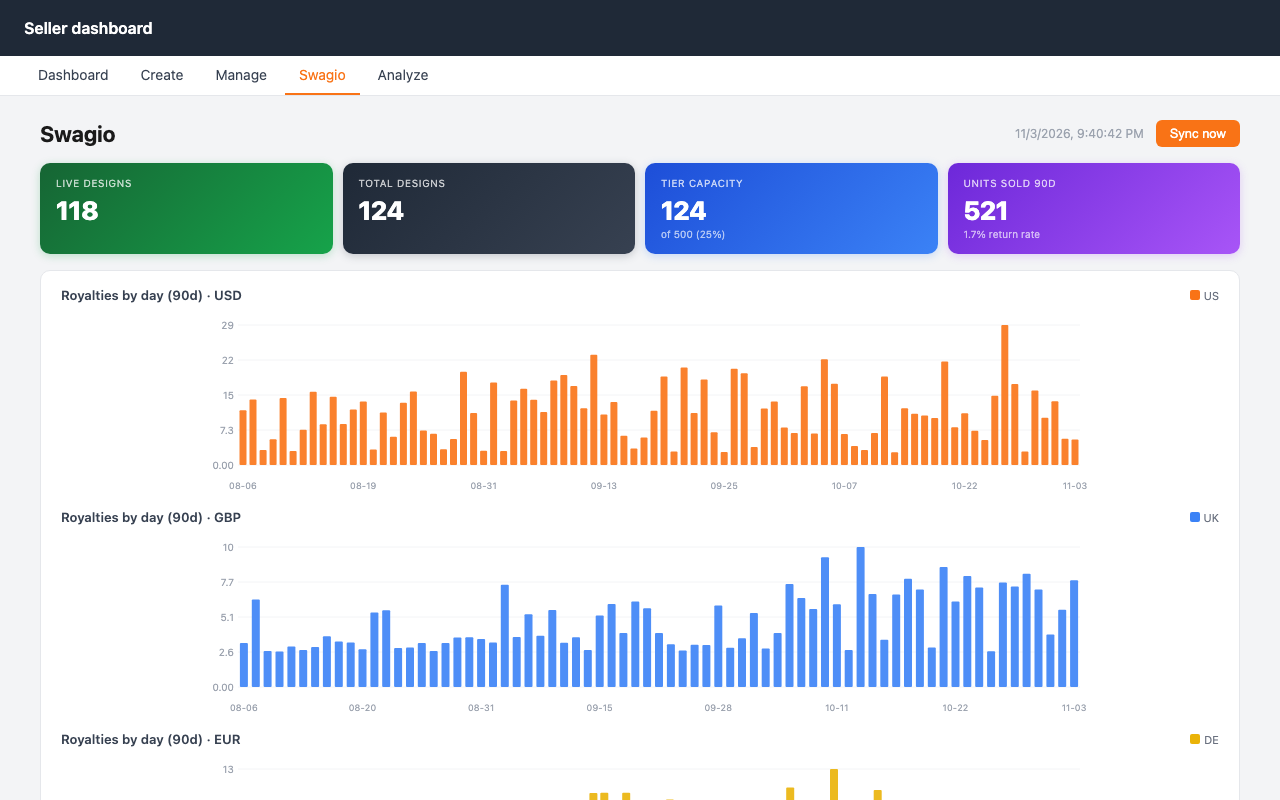
- Tiles: live designs, total designs, tier capacity and units sold in the last 90 days with the return rate.
- Royalties by day: one chart per currency, bars split by marketplace.
- Table: click a column header to sort, click again to reverse. Use the filter row under the headers: text for title and ASIN, multi-select for status, type and marketplace, a maximum price, and "on or before" dates for created and expiry.
- Copy ASINs copies the ASINs of all listings that match the current filters (up to 10,000).
- Clear filters appears as soon as a filter is set.
- Click an ASIN to open the product page on the matching Amazon marketplace.
The toolbar popup
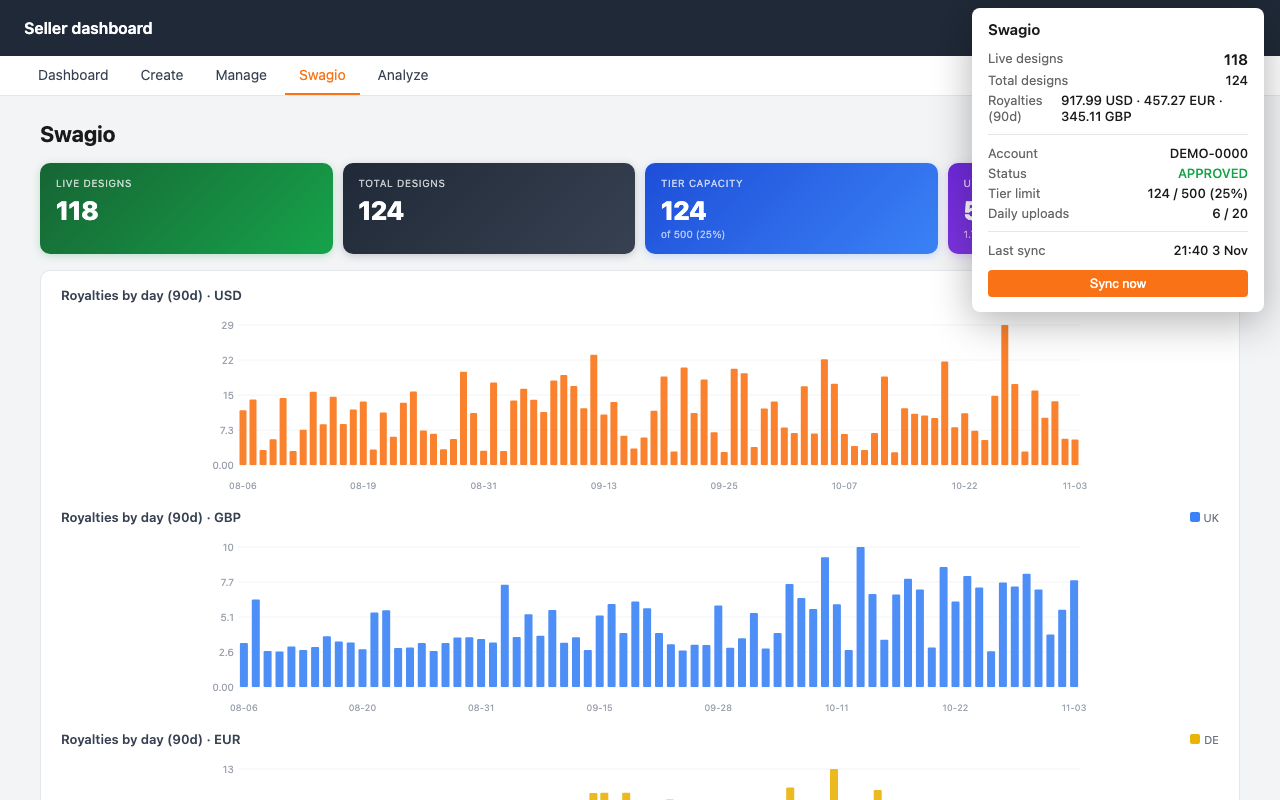
The popup shows live and total designs, royalties of the last 90 days per currency, account status, tier limit and today's uploads. Sync now in the popup starts a sync in the current tab, so switch to your merch.amazon.com tab first.
Your data
Everything Swagio loads stays in your browser's extension storage. To delete it, remove the extension (right-click the icon → Remove from Chrome); Chrome deletes all its data with it. Details: privacy policy.
Troubleshooting
"Account ID not found"
Swagio learns your account from the Merch page itself. Reload merch.amazon.com, wait until the page has loaded, then sync again.
"Sync failed" or no data appears
Check that you are still signed in to Merch by Amazon, reload the page and sync again. If Amazon rate-limits, Swagio waits and retries on its own.
The Swagio tab is missing
Reload merch.amazon.com. After installing or updating the extension, already open Merch tabs need one reload.
Popup says "Open merch.amazon.com first"
The popup syncs through the tab you are looking at. Switch to your merch.amazon.com tab (or open one), then click the Swagio icon again.
Still stuck? Contact support.